


Close Menu
GeekPlanet

    Subscribe to Updates

    Be Geeky and subscribe to GeekPlanet for Technology, Security and Gadgets.

    What's Hot

    Tips to Secure Your Online Banking in India

    Android Privacy Controls You Should Enable Right Now

    Upcoming Budget Smartwatches in India This Quarter

    Facebook X (Twitter) Instagram
    • Privacy & Policy
    • Terms & Conditions
    • Contact US
    Facebook X (Twitter) Instagram YouTube
    GeekPlanetGeekPlanet
    AtlasVpn
    • Home
    • Gadgets
    • Entertainment
    • Cyber Security
    • How To’s & Guides
    • Reviews
    • Python
    GeekPlanet
    Home - How To's & Guides - Step By Step guide to Automatically forward emails to new email account
    How To's & Guides

    Step By Step guide to Automatically forward emails to new email account

    Geek PlanetBy Geek PlanetUpdated:October 9, 20232 Mins Read
    Facebook Twitter Pinterest LinkedIn Telegram Tumblr Email
    Gmail-3
    Share
    Facebook Twitter LinkedIn Pinterest Email

    Many people want to change their old email ID, the reason is that in the hurry to create an email ID, they have created an ID with some name which they no longer like. If you have also done something similar then you are not alone. But the problem is that everyone has the old email ID, if he mails on that then how can it reach you, then there is a very easy solution for this, let us know –

    (Automatically forward emails to new email account)

    • First of all, create a new email ID of your choice and note down its address and password in your diary.
    • Now open the old email. Whose email you have to forward. Here click on the settings icon given in the top right. Here click on Forwarding and POP/IMAP tap.
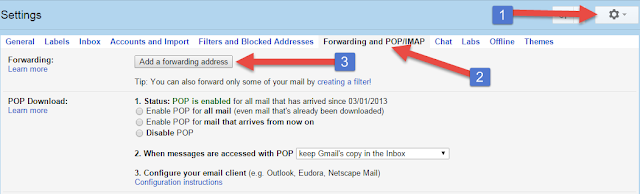
    • Here in the Forwarding section, click on the Add a forwarding address button.
    • Now a box will open, enter the new email here and click on Next.
    • For security, a verification mail will be sent to your new email ID, so open the new email ID and click on the verification link sent or copy the confirmation code and paste it in the verification box. As soon as the link verification is done, your email will be ready to be forwarded.
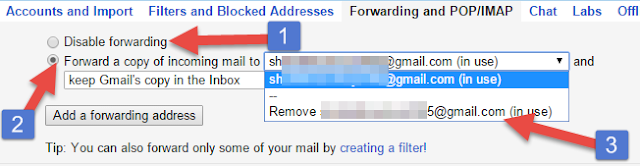
    • Refresh the browser and Tap Forwarding and POP/IMAP.
    • Here, if Disable Forwarding radio button is ticked, then put it on the second option i.e. Forward a copy of incoming mail to. Here you will see the new email address. If you wish, you can stop this email forwarding at any time. For this, go to Forward a copy of incoming mail to option and select Remove option.
    • After doing all the settings, click on the Save Changes button given at the bottom of the page.
    Gmail
    Share. Facebook Twitter Pinterest LinkedIn Tumblr Email
    Geek Planet
    • Website
    • Facebook
    • X (Twitter)
    • Instagram

    Hello, tech enthusiasts! I'm Devender, your guide through the ever-evolving world of technology. With a passion for innovation and a knack for breaking down complex concepts into digestible bits, I'm here to help you navigate the digital frontier.

    Related Posts

    AI Coding Tools Are Reshaping Developer Jobs in 2026

    84% of Developers Use AI Coding Tools Daily, But Productivity Gains Stay at 10%

    Stop Meta From Using Your Instagram Photos for AI: How to Opt Out

    Claude Code Artifacts Turns AI Coding Sessions Into Live Shareable Pages

    Deploying your own personal AI agent with OpenClaw

    How to Create Whatsapp Channel – Understand Step by Step

    Leave A Reply Cancel Reply

    Top Posts

    Tips to Secure Your Online Banking in India

    Data Structures and Their Functions in Python

    How do I edit a sent message on WhatsApp?

    Don't Miss

    Tips to Secure Your Online Banking in India

    Follow these expert tips to keep your bank accounts safe from hackers.

    Android Privacy Controls You Should Enable Right Now

    Upcoming Budget Smartwatches in India This Quarter

    Generative AI Tools Helping Indian Startups Scale Fast

    Stay In Touch
    • Facebook
    • YouTube
    • TikTok
    • WhatsApp
    • Twitter
    • Instagram
    TPS4
    Most Popular

    Tips to Secure Your Online Banking in India

    Data Structures and Their Functions in Python

    How do I edit a sent message on WhatsApp?

    Our Picks

    Tips to Secure Your Online Banking in India

    Android Privacy Controls You Should Enable Right Now

    Upcoming Budget Smartwatches in India This Quarter

    Subscribe to Updates

    Be Geeky and subscribe to GeekPlanet for Technology, Security and Gadgets.

    Facebook X (Twitter) Instagram Pinterest
    © 2026 GeekPlanet.in Managed by MyAdsMantra Global.

    Type above and press Enter to search. Press Esc to cancel.

    Ad Blocker Enabled!
    Ad Blocker Enabled!
    GeekPlanet is a safe place for every tech lover and is made possible by displaying online advertisements to our visitors. Please support us by disabling your Ad Blocker.