




You paid for a Wi-Fi 7 router expecting the leap that the box promised: around four times the speed of Wi-Fi 6 and 6E, lower latency, and headroom for a house full of devices. Then you ran a speed test and got numbers your old router would not be embarrassed by. You are not alone. Forums are full of new Wi-Fi 7 owners asking why the upgrade feels invisible.
Wi-Fi 7 has been around since the Wi-Fi Alliance launched the standard in 2024, so the hardware is mature. The disappointing speeds usually come down to a handful of fixable issues. Here is what actually limits a Wi-Fi 7 router at home, and how to get the performance you paid for.
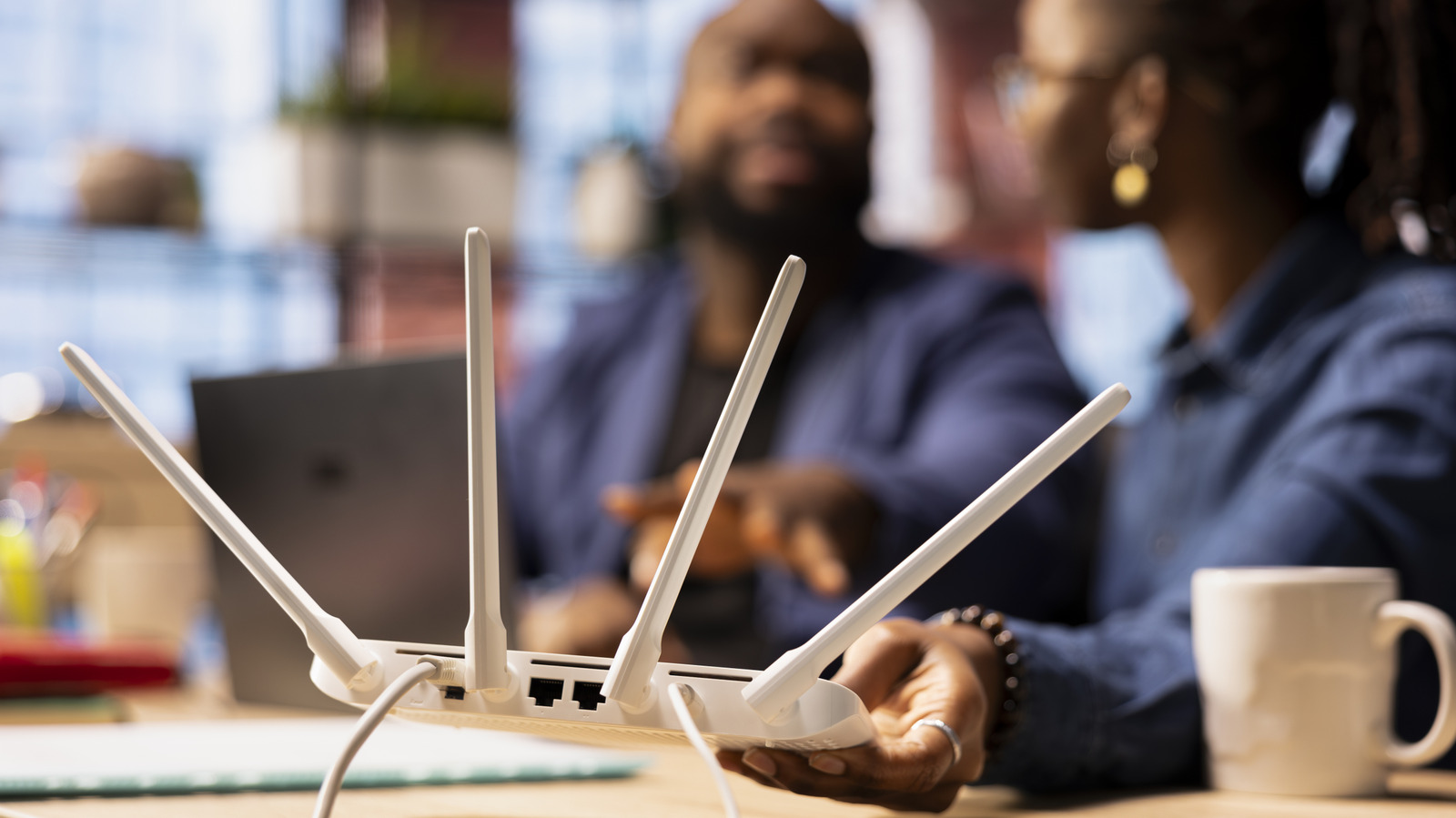
What Wi-Fi 7 Promises vs What Delivers
On paper, Wi-Fi 7 is a large step up. Theoretical peak speeds land around 46 Gbps, roughly four times faster than Wi-Fi 6 and 6E, with lower latency and better capacity in congested environments. If your home is packed with devices, from phones and laptops to smart bulbs and cameras, Wi-Fi 7 is designed to keep everyone running smoothly.
Two realities temper the promise:
- Real-world speed is shared. Your internet connection is the ceiling. A 100 Mbps broadband plan will never show Wi-Fi 7’s potential in a speed test, no matter how good the router is.
- Your devices must support it. Wi-Fi 7 is backwards compatible, so old gear still connects. But a Wi-Fi 6 phone on a Wi-Fi 7 router gets Wi-Fi 6 speeds. Only Wi-Fi 7 clients can use the new features.
Adoption is still early. Data from connectivity intelligence firm Ookla found that at the beginning of 2026, Wi-Fi 7 had grown to 7.2 percent of the market, up from 1.8 percent a year earlier. If your household is typical, most of your devices are still on older standards, and the router is only as fast as the slowest thing you are doing at the moment.
Fix 1: Router Placement Beats Everything
The most common cause of slow Wi-Fi 7 speeds is where the router sits. It is natural to tuck an ugly router into a closet or a corner, but placement directly shapes signal quality.
- Placed too close to drywall, the router’s signals bounce off the wall and back toward its own antennas, which degrades the original signal.
- Cabinets, metal racks, and aquariums between the router and your device absorb or reflect the radio waves.
- A corner placement wastes half the router’s coverage area on your neighbour’s wall.
The fix costs nothing. Move the router to an open media console shelf, or at least three feet out from the corner, with some height around it. Then rerun your speed test from the spot where you usually work or stream. Most people see an immediate improvement.
Fix 2: Count Your Devices
Phones and tablets are no longer the only things on the Wi-Fi. Wearables, TVs, speakers, robot vacuums, air conditioners, and light bulbs all hold a connection. Netgear estimates that most homes now have at least 20 connected devices.
More devices mean more contention for airtime, even when they are idle. To keep up, you need three things:
- A router with a fast processor that can manage many simultaneous connections.
- At least two frequency bands, which any Wi-Fi 7 router has and older budget routers may not.
- Enough bandwidth from your internet service provider to feed everything at once.
A quick test tells you if devices are the problem. Note whether slowdowns happen only when everyone is home and streaming, or whether they are constant through the day. If speed recovers at night when devices sleep, congestion is your issue and the fixes are placement, band management, or a plan upgrade.
Fix 3: Understand MLO (Multi-Link Operation)
MLO is the headline feature of Wi-Fi 7. Multi-Link Operation lets a compatible device use multiple bands at the same time: 2.4 GHz, 5 GHz, and 6 GHz together instead of one at a time. In practice that means connections that are both faster and more reliable, because the router can move traffic to whichever band is cleanest without dropping the connection.
Two things to know before you assume MLO is running:
- Only Wi-Fi 7 devices can use MLO. Your older laptop will not see any benefit from it.
- MLO needs to be enabled on some routers. Check the wireless settings in your router admin page. If separate networks are configured for each band with different names, MLO is usually off.
6 GHz support is where MLO shines, but 6 GHz range is shorter than 5 GHz. If your device is far from the router, the extra band helps less than you expect, which brings us back to placement.
Quick Troubleshooting Order
When speeds disappoint, work through the fixes in this order. It saves hours of random settings changes.
- Run a speed test standing next to the router on a Wi-Fi 7 device. If that is slow, check the broadband plan and the firmware first.
- Test again with a laptop on an Ethernet cable straight into the router. Wired speeds tell you what the internet connection actually delivers.
- Move the router to an open spot at least three feet from corners and retest from your usual seat.
- Count the connected devices in your router admin page. If the list is long, move smart home gear to a guest network.
- Enable MLO and confirm the router is not splitting bands into separate networks with different names.
After those five steps, the remaining causes are almost always external: thick walls, neighbour interference on the same channel, or an ISP plan that cannot deliver the numbers you expect.
Tips: Getting the Most From a Wi-Fi 7 Router
- Update the router firmware first. Wi-Fi 7 chipsets are young, and several vendors have shipped stability and throughput fixes through updates alone.
- Run a speed test near the router on a Wi-Fi 7 device before blaming the router. If wired and close-range speeds are fine, the problem is coverage or interference, not the hardware.
- Use wired backhaul for mesh systems where you can. Even one Ethernet run between nodes transforms mesh performance compared with wireless backhaul.
- Pick the right band for the job. Put phones and smart home gear on 2.4 GHz, keep laptops and TVs on 5 GHz, and reserve 6 GHz for close-range high-bandwidth work.
- Check your broadband plan against your expectations. If the plan is 150 Mbps, no router will make a speed test say 1 Gbps.
- Separate IoT devices onto a guest network. It reduces congestion on the main network and adds a security layer.
FAQ
Why is my Wi-Fi 7 router slower than advertised?
Advertised speeds are theoretical maximums shared across all devices. Your broadband plan, device capabilities, router placement, and the number of connected devices all pull real-world speeds down. Placement and device count are the usual culprits.
Do I need new devices to use Wi-Fi 7?
For full speeds and features like MLO, yes. Wi-Fi 7 routers work with older devices, but those connect at their own standard’s speeds. Only Wi-Fi 7 phones, laptops, and tablets deliver the new performance.
What is MLO and should I enable it?
Multi-Link Operation lets a Wi-Fi 7 device use 2.4 GHz, 5 GHz, and 6 GHz at the same time for faster, steadier connections. Enable it if your router supports it and you have Wi-Fi 7 devices. It makes no difference to older hardware.
Where should I place my Wi-Fi 7 router?
Central, open, and raised off the floor. An open media console shelf works well. Keep it at least three feet out from corners and away from direct wall contact, since signals bouncing off nearby walls degrade the original signal.
