



Microsoft has released PowerToys 0.102, and the star of this update is a mouse trick you will wonder how you lived without. Mouse Button Lock lets you press and hold a mouse button for a moment, let go, and keep dragging as if your finger never left the button. The update also adds CursorHide, new command-line tools, and a quick-access shelf for Command Palette.
PowerToys remains free and open source, and version 0.102 is available now on the official GitHub repository. Here is what each new tool does and how to switch it on.
What is Mouse Button Lock in PowerToys
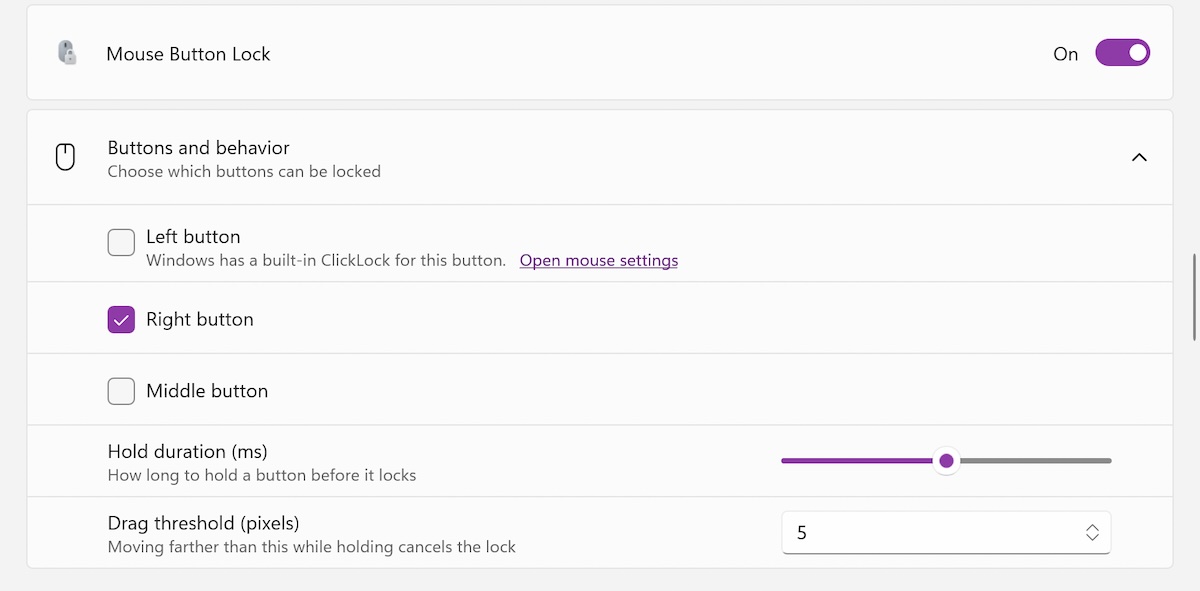
Mouse Button Lock solves a very specific annoyance: holding down the left mouse button for long stretches. If you have ever tried to select a huge block of text, drag a complex selection in Photoshop, or hold a control in a game until your finger cramped, this one is for you.
As Microsoft senior product manager Niels Laute explained, you press and hold a button for a moment, then let go. Windows keeps treating the button as held, so you can continue dragging or selecting until you click any button. Clicking cancels the lock and returns you to normal.
Microsoft lists three groups that benefit most:
- Gamers who need to hold a button for extended periods.
- People working in professional applications that require extensive dragging and selection.
- Users with accessibility needs who find it difficult to hold down a mouse button for long.
What CursorHide does
CursorHide is the second new mouse utility in PowerToys 0.102. It automatically hides the mouse pointer while you type, or when you are not moving the mouse at all. If you record your screen, give presentations, or just hate a stray cursor sitting on top of your text, this keeps the pointer out of the way until you actually move it.
Together with CursorWrap, which arrived in PowerToys 0.97 and teleports the pointer to the opposite edge of multi-monitor setups, PowerToys now has a proper little mouse toolbox.
Command Palette gets a quick-access shelf
The Command Palette quick launcher now has a quick-access shelf. You can pin up to nine commands right under the search box and run them from the keyboard. Enable it under Settings, then Appearance, then Compact mode. After that, press Alt plus 1 through 9 to run any pinned command, or Alt plus Shift plus a number to select one without running it.
For anyone who uses Command Palette as a daily launcher, this is the difference between typing a command name and hitting two keys.
Everything else in PowerToys 0.102
The rest of the changelog is smaller but useful:
- New command-line tools to script PowerToys from the terminal.
- Tap-alone remaps in Keyboard Manager, so a modifier key can act as a normal key when tapped by itself.
- A searchable key picker for Keyboard Manager remaps.
- A new ZoomIt feature that adds text to screenshots using dictation.
The full release notes for version 0.102.2933.0 are on the official GitHub repository.
How to get PowerToys 0.102
- Open the Microsoft Store and check for updates if you installed PowerToys from there. The new version should appear automatically.
- If you installed from GitHub, download version 0.102.2933.0 from the official PowerToys releases page and run the installer.
- Enterprise users can push the update through their usual deployment tools. PowerToys installs per machine or per user, depending on the package you choose.
How to turn on Mouse Button Lock and CursorHide
- Open PowerToys Settings from the system tray.
- Find the new mouse utilities section in the left sidebar.
- Toggle on Mouse Button Lock, then check its activation shortcut so you know which key combination arms the lock.
- Toggle on CursorHide if you want the pointer hidden while typing.
- Test Mouse Button Lock in a text editor first. Hold the left button briefly, release, and confirm the selection keeps extending as you move the mouse. Any click ends the lock.
Why PowerToys keeps getting better
PowerToys started life during the Windows 95 era as a collection of small freeware tools built by Microsoft developers as personal projects. Microsoft revived it in 2019 as an open-source utility pack, and it has been shipping steady improvements ever since. Window Hopper, which adds Alt plus Tab style switching between one app’s windows, arrived in August. The toolset keeps filling the gaps that Windows itself does not cover.
That is also why the community keeps it installed across Windows 10 and Windows 11 machines. It is free, it is updated constantly, and each release usually fixes at least one daily irritation.
Real uses for Mouse Button Lock
The feature sounds small until you list the moments it covers. Selecting a long paragraph in a document editor becomes a one-hand job. Cropping a large screenshot stops being a finger workout. In games that ask you to hold a button to charge an attack or steer, the lock turns a sustained press into a tap. And for anyone with limited hand strength or repetitive strain injuries, it removes the hardest part of dragging entirely.
The same logic applies to design work. Tracing long paths in image editors, adjusting large selections in spreadsheets, or scrubbing timelines in video software all involve holding and dragging. Mouse Button Lock does not change what the software does, it just stops your hand from doing the work of staying pressed.
PowerToys tools worth knowing beyond 0.102
If this update is your first look at PowerToys, the pack has a lot more to offer. A few staples worth switching on:
- Always on Top, which pins any window above the others with a keyboard shortcut.
- FancyZones, a window manager that snaps apps into custom layouts.
- Text Extractor, which pulls text out of anything on your screen, including images.
- Image Resizer, a right-click batch resize for photos.
- Keyboard Manager, which remaps keys and now supports tap-alone remaps.
- Peek, a quick file preview with a single shortcut.
Everything is modular. You enable only what you use, and the tray icon gives you fast access to settings when you want to change something.
Frequently Asked Questions
How do I enable Mouse Button Lock in PowerToys?
Update to PowerToys 0.102, open PowerToys Settings, and toggle on Mouse Button Lock in the mouse utilities section. Check the activation shortcut there, then press and hold a mouse button briefly to arm the lock. Any click releases it.
What does CursorHide do in PowerToys?
CursorHide automatically hides the mouse pointer while you type or whenever the mouse is idle. It is useful for screen recordings, presentations, and writing, and you can toggle it on or off in PowerToys Settings.
Is PowerToys free?
Yes. PowerToys is a free, open-source project from Microsoft, and version 0.102 is available from the official GitHub repository and the Microsoft Store.
Does PowerToys work on Windows 11?
Yes. PowerToys runs on both Windows 10 and Windows 11, and the new mouse utilities in version 0.102 work on supported versions of both.
Can I use Mouse Button Lock in games?
Yes. Microsoft specifically calls out gaming as a use case, since many games ask you to hold a mouse button for charging, steering, or sustained fire. Arm the lock with its activation shortcut, press the button briefly, and click any button to release it.
Does PowerToys slow down Windows?
PowerToys is designed to be lightweight, and you only run the utilities you enable. If you ever want to trim it down, open PowerToys Settings and switch off the modules you do not use. Each one can be toggled independently without touching the rest.
Small tools, big relief. If you only install one power-user utility this month, Mouse Button Lock alone justifies the download.
